Chris Truncer - Offensive WMI Workshop
Show transcript [en]
yeah no problem so this is the least important slide i think of the whole deck um just my background is i'm one of the co-founders of a company called forty north security uh basically i do offensive security work uh for almost all of my career i started as an i.t uh systems admin and then moved into security uh i like to think that i'm a i use a developer in a very loose terms where basically i like to write code until it doesn't error out on me anymore uh at least gets past that and i can deal with warnings but i just worked on various different projects so what's this workshop about well number one is going to be wmi uh can it
be repurposed for offensive use and hint that answer is uh for unfortunately fortunately uh yes uh so what can we do purely with wmi like how can we use it to accomplish different tasks we're going to work through that i'm going to talk about a tool called women implant and then we're going to discuss what defenses there are and how we can try to circumvent some of them so a little bit of housekeeping before we get going i'm going to assume that everyone has a laptop with a windows 10 virtual machine or you can buddy up with someone and check it out and look at the code that they're running if you want to or
like i said if you don't mind running code on your corporate laptop by all means continue go ahead and do that uh if you have administrative rights locally that will be easiest to do most of what we're going to talk about not everything requires admin rights when we're working locally on our system but if you were to do this in a corporate environment and you're trying to do stuff remotely you will need to have administrative rights basically to do almost anything and ideally we're gonna be comfortable the command line so uh this was again the link from the very first uh slide uh which is the link is kind of broken up terribly right here um but if
you once again need to download those files you can go ahead and get them there it's up and available on our website and um as you're working through this try to feel free to build out these commands if you want however there is like i said i've mentioned like an answer sheet if you will or it's kind of like a text file within that zip which has pretty much all the commands that we're going to discuss and work through today already built out so especially because we may be having to go through these labs a little bit quicker than i normally would they're there if you just want to copy and paste and like get the answers and see them as
they go let's talk about this uh we're going to have roughly about like 20 25 slides to give background on wmi what it is how it's kind of structured and then we'll get into i promise all the hands-on stuff so first of all what is wmi well it stands for windows management instrumentation it's a service that's installed and enabled by default since server 2000 so it's been quite some time that's always there and the big thing is it enables like system administrators or really anyone the ability to query local or remote systems for management purposes like we can do gather a whole ton of a whole bunch of different types of data about the different systems that were
either that we're trying to enumerate and just learn about them like how much disk space do they have what users are logged in what applications are installed there's a whole bunch of different things that you can use uh i think here's like that issue i don't know if it's necessarily an issue but more of like a tenant that i like to think of and really most people i think in our industry accept is that any legitimate administrative tool can be repurposed by an attacker for offensive use cases um so that i think rings true for wmi so when we're interacting with wmi like i mentioned it is highly likely that we're going to need administrative
permissions except when we're doing stuff locally so when you guys are guys and gals that are doing this on your workstations if you have it or like a vm you shouldn't need admin rights for everything but when you're doing stuff on a remote system or targeting remote system you will so there's two primary ways to interact with wmi wymic is one although microsoft has says that they are now deprecating that in favor of using powershell to interact with wmi um although they've also been saying wmi itself will be deprecated uh for sim which wmi is still around so we'll see when that happens uh but wimmick is like the standard like kind of like a standard
command line option that a lot of people uh might have used a lot to interact with wmi so it might just look something like this right we've got in this case we're calling womec uh process called create so basically just trying to create a process right now in this case we're getting two different values as output and the first one is hey we're creating task manager and it's starting it and we're getting this value of 4044 which is the process id of task manager that got started the big thing here that we want and pretty much everything you're going to be doing today uh we want this return value of zero uh basically that means
that your call was successful like whatever you did if you get anything besides zero something messed up and trying to find what a non-zero return value means when being invoked over wmi on the documentation of msdn is going to be a nightmare so it's not a fun trip but so that's what we want to see so that's what's happening right here is we're just starting a process uh the other option that i'd like to mention is powershell so powershell does enable us to interact with wmi locally on our system or on a remote system that we're targeting for the purpose of this we're largely going to be using i mean these are like powershell version 2 commandlets but
there's a couple that we're going to talk that require windows 10 pro windows 10 enterprise or like server 2016 and above which we'll get to in a second but for this for the sake of this workshop we're going to be primarily leveraging powershell to do everything uh so prior to using any powershell commandlets though um when we are performing remote authentication or like enumeration of systems via wmi we have to authenticate to that right like i mentioned that it generally does require admin rights um for anything that we're gonna do so what we need is to basically be able to authenticate leveraging powershell to a remote system and we can do that by creating what's called a ps credential
object and so ps credential objects are basically what's passed to a remote system to say hey yeah we have a username and password that's who we want to authenticate as and that's the only reason we need to do that though is if we're also not so our current account is not an admin on that remote system that we're targeting so we would need to authenticate as a separate user account uh ps credential object is what lets us do that and i'll show you again a code here in just a second these objects can be created interactively or not interactively so the main commandment that's going to get you what you want if you're operating in an interactive manner is
going to be this get credential commandlet and so that's just going to basically be like what pops up almost like as if you are authenticating to a network drive we're basically something like this so hey in this case where is it uh creds is the variable which is going to store our ps credential object and so all we're doing is calling this git credential storing it in creds and then right here this is what pops up and so we can do this because this is interactive access so we can interact with the desktop and enter our username and password and it's going to store the ps credential right in that krebs variable now what if we're not operating in
interactive access right that's because maybe we only have command line access or we're writing a script well we can't obviously use git credential to have our screen pop up and just enter it well there is like i mentioned also another way that we can do this it's basically just like two extra lines of code but we're going to do something called convert to secure string which is going to be the command line that's essentially used like store a password of store our password that we're using to authenticate with and then we're creating the actual ps credential object here where we provide the domain the username and then the password output from this convert to secure string
in order to create a ps credential object so this is more again just kind of background right now you won't have to do this today because you're going to be interacting pretty much locally i would assume with your windows 10 virtual machine but i wanted to be able to just give this background so that in case you actually do go out and like test this in your environment how you would authenticate to a remote system this is basically what your code would look like so i'm just at this top line just providing like the domain and the username of my account that i want to authenticate as the second line is just whatever my password would be
and then we're providing that to this convert to secure string we're specifying the variable which is storing that clear text password is remote pass and then we're providing the extra parameters as as plain text and dash force and so that is creating this password it's basically converting it into a secure string go figure storing it in this variable and then finally i'm creating that ps credential object where i'm providing the user account and the domain that i'm trying to authenticate as and the secure string object and that will be what actually creates a ps credential object which is this variable this remote credential um so that's what we need to provide our power shell commands that we're gonna be running
here in a second if we are authenticating remotely um let's talk about that now and again i know this is kind of abstract at the moment we're going to get hands-on and it'll be a lot more hopefully make a lot more sense but there's two main powershell command lists you're going to be or we're going to be discussing today at least when we're trying to interact with a our systems over wmi one of them is a git wmi object or i just usually say get wimmy object um and what this does is whatever our query is it returns like uh objects related to it so i love these definitions from msdn like returns an object containing a representation of a
query wmi class so that's like incredibly abstract like what does that mean right um so we're going to talk about and you're going to get hands-on within a second but let's say you want to get like what are the processes running on a system well we would use this get wimmy object commandlet it'll return back a whole bunch of object and basically every single process that's running is an object that's returned by this commandlet and it has tons of different attributes like what's the process id like what is the uh process's name what's the parent process uh anything that's gonna be associated with that process is returned as an attribute within this object which uh we'll talk
about and we'll look at manipulating another the other primary one they're going to be using is uh invoke wmi method and this makes a little more sense it runs a specified method of a wmi class well when we're interacting with like wmi objects um or just like trying to run various uh do certain things um like i said we're gonna stick with processes like we we can easily enumerate what processes are running on a system and that returns us objects well if i want to create a process or like kill a process one way that we would do so is to run a method of a class and so there's a process called create where we can start
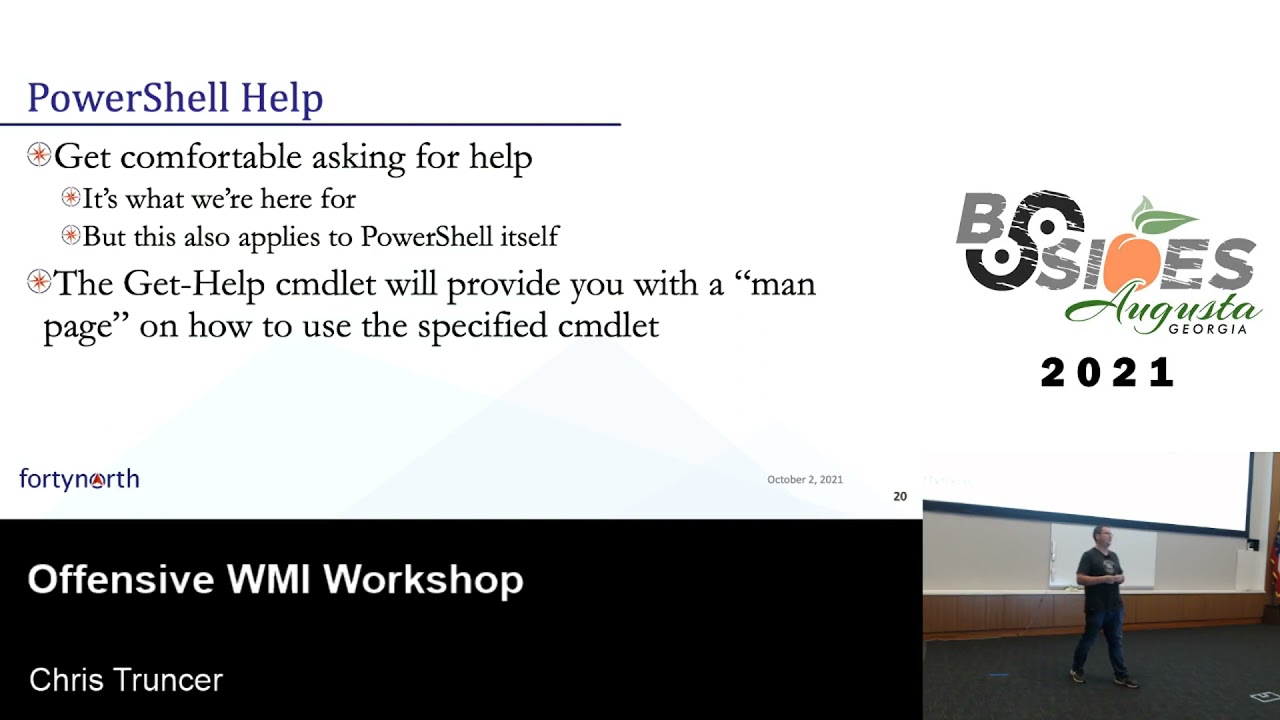
processes locally or remotely and we would do so using this powershell command like this invoke wmi method commandlet to continue on try to feel useful or not useful um i'm trying to think the right way to phrase this uh i mess up my code all the time like i don't know what i'm doing half time like google is my best friend um so is interacting with the powershell help content i would say get comfortable like asking for help like always researching stuff i think one of the best skills that any of us like it people not necessarily security have is the ability to teach ourselves what we don't know or how to research and figure out what we don't know so we
can get the right answer so feel get comfortable like asking for help because i'm constantly referencing man pages or msdn um trying to figure out okay what's the right parameters i need to specify so being able to do that like especially if you haven't interacted with wmi before is um a useful skill set to build out just to be able to how to answer your own questions uh so here's just an example of like get help on this invoke wmi method and there's a lot here there's a whole bunch of different examples that are shown that you can look at and try to work through and it'll help also give you just what each parameter can do so i would say check
these out if you're ever running into issues which is nice because it's just built right into your system all right so i think it's the last part before we start getting diving in is how is wmi organized well wmi leverages classes to group functionality of wmi into other logical classes so if we want to access data on a remote system or a local system we need to specify the wmi class that correlates to the data that we need so there's a whole bunch of different classes there's like computer hardware classes um classes that deal with like what applications are installed on a system classes that contain information about the operating system itself security descriptor classes
there's a tons out there there's process classes so basically in order to find out whatever information you look are looking for or looking to gather you need to know okay what class do i need to query to be able to return that information online you can find microsoft published and grouped similar wmy classes so if you just do like a google search for win32 classes you'll get pages like this where it says hey there's operating system classes and that you can go into there and see okay what information is contained within this class like you can use wmi to query what version of windows 10 are you running or of windows excuse me are you running
you can query again for like applications that are installed so there's a whole bunch of different information that you can gather but the big thing is knowing what class do you have to interact with in order to get that information and the best grouping of that is really honestly going to probably be microsoft's documentation in that case like i also mentioned wmi classes do have methods which let you do something and so that's when we would interact with like that invoke wmi method commandlet which you're all going to be doing shortly um like if you want to create a process there are there are classes that are built into windows that enable you to do
that but like i mentioned if you want to gather information like how much hard drive space is free uh on your hard drive well win32 logical disk is going to be the class that you care about that's one that's that would contain that info if you want to create a process well there is a process class out there what if you want to find computers with an active user by that i mean like a computer system where someone is currently logged in uh 132 computer system is useful for that like once like why is that useful i remember i was on a test one time and we were like it was like a pen test it
wasn't anything crazy so we weren't trying to necessarily be stealthy and we had either credentials or i forget what it was something where we wanted to be able to log into a system and just remote desktop into it and like run an application or run a command and uh we had probably like a couple thousand different computers that were joined to active directory that we could access and i just started like sample remote desktopping into some of them and every time i got in there is always someone that said currently logged in that i have to kick off well i don't want to disrupt anyone from doing that so eventually after like five systems i stopped being stopped being
lazy just trying to hopefully get lucky and just wrote a quick like one liner of powershell code where basically because we had admin rights i was querying all the systems in the domain using that 132 computer system class to try to figure out okay if there is a system that doesn't have a user currently logged in report that back to me and after like of course 10 seconds i had a pretty big listing so we could just choose and log into any of the systems at that point so that was an example where being able to query every system basically that we could using wmi enabled us to pretty quickly figure out what system we could jump on target
i couldn't i have to also make sure to note that there are also sim classes and we're going to talk about them briefly in one small section during this workshop today but these are also essentially like the wmi equivalent and really almost like the the future proof way so if you're going to start really diving into this i highly always recommend diving into wmi but i would also look into sim classes as well because that's what microsoft says they're going to support and is there is wmi's eventual replacement but i'm granted wmi is still there but just worth looking into so i wanted to make sure to call that out as well all right so now that we got through the
background a little bit uh let's start talking about wmi so talking about this uh my buddy casey smith um whenever he learns like a new technology his thing in the way that he likes to learn it is how do i make it run mini cats like it doesn't matter what language it is or like what bypass it is like his hello world is make it run mimi cats i like to figure out like how can i introduce like basic almost like rat functionality uh leveraging different technologies so that was uh the first thing that i did uh when trying to learn how to manipulate like wmi uh so like i started off okay what are
some of the basics like some basic functionality i would expect in a rat that i would want it to have like well directory listings might be some of them the ability to start and stop processes what processes are currently running can i view network connections can i run shell commands so these are all things i kind of would like hope is like the bare bones basic functionality in something like a rat what about some extras though right well i want to be able to upload or download files i want to be able to possibly run powershell scripts possibly in memory if possible read file contents create schedule jobs find active users there's a whole bunch
of different things i want to be able to do all of that well with wmi you are you can accomplish like all of these things that we just discussed and that were on those few slides so let's start looking at how we can actually do this with wmi and i think it's fun to try to build out new capabilities i get a lot of um job like satisfaction out of building stuff and actually seeing it being used really more so on my end but like if other people like it great so let's do that all right let's talk directory listings with wmi so when we're doing this there are two different classes that are going to
return the information that we need so there's the win32 directory class which uh take gives you a listing of all directories that for whatever location you're targeting on disk and uh the sim data file class is going to be something that can also give you a listing of files so if we want to get folders or files for specific directory though what we need to do is create a filter and what that filter is going to do is it's going to instruct powershell or like the system really on where do you want to get like your directory listing or file listing from like what location on disk what drive uh so our code would look is going to
look something similar to this where we're just creating a variable called filter we're specifying hey i want to look at the c drive in this case i just want to look at the c user's directory like give me everything that's within that directory so if we want to do that like what's our overall command look like that will give us that information this is basically it the first thing that we do is create that filter so we got our c drive again the directory this can be any directory that you want it clearly doesn't have to just be this directory and in this case i'm going to call gitwimi object to specify the class in this case as
win32 directory and specifying the filter and that should basically output then the various folders that are within that directory and the same thing after that is except we're just calling the sim data file class and that should output the files that are in that specific directory so that will be time for you all i would say go ahead and open up a windows command prompt or powershell for this you should not need admin rights since you're doing this just locally but go ahead and try running these commands and see if you can get your output of your different directories or different files i would say also try changing the filter so you can get used to trying to
actually change like what directory you're actually getting this information from and give it a shot i'll put up try to put up a timer for about like two minutes just for time to let everyone go ahead and get through that and if you have any questions again like now is a good time or and anytime after this workshop as well i'm happy to help answer questions
now let's go
if you do copy and paste this from like the notes that came with the files just be careful with some of these quotes because they might be like the pretty quotes and you're going to get like a powershell error because it's not like a regular quote so they should output slightly different um but somewhat of the same where like the win32 directory is going to just only be showing like directories that are within that location the sim data files should only really show files if you're getting exactly the same that would be a little bit off i would think and i can either come check it or we can look at it after the workshop as well
okay okay perfect yeah no problem all right i'm going to go ahead and keep going just so we still have uh time to get through everything hopefully i don't know can i do this we should see something similar to this and i'll show you an extra thing that we added here but basically this is just the win32 directory um every directory that's in like whatever folder you are looking for is an object so you have different attributes associated with each folder and but these are all different folders that are here so like we have the name is just going to be like the path um some of them are like hidden directories that you can't see
uh here's also worth just something calling out so i didn't talk about this tac computer name command line parameter that you can specify what that does is that's how you would actually perform this query against a remote system so if we leave this off and just run the command that basically we showed back here this is going to perform that query against your local system if we are doing this and providing this tac computer name command or parameter that is going to run that query against either this ip address or the host name whatever it is that you specify anyone have a guess why we don't have a ps credential object up here uh partially yeah um well so
that would be how to change the context of the account that you're authenticating under um and in this case uh this is running it under the context of the current user account that we're currently logged into and because we're getting results that must mean that the account this was ran under has admin access on that remote system so we don't actually have to provide the ps credential object unless we are authenticating under a different user account here's a similar concept uh basically almost very similar output uh for a sim data file except um it would just be files in that case so we're not actually uh getting any like directories uh it just would be whatever file so this
might have been somewhat of a bad example because i only have one file here but if anyone's like changed like the filter that you were searching for and like did your desktop your downloads directory assuming you had files and other directories in there you should see that there are more results coming back to you any any questions on this concept or basically just being able to enumerate directories and files okay and again i know i'm kind of going a little fast through this just trying to make sure we can get through everything within the time frame but if you have questions after this workshop don't hesitate to come up great so we started talking about
one of the basics that we care about or at least i cared about was performing directory listings uh so let's talk about like processes right because that's another interesting thing that i usually care about when i'm either trying to compromise a system or gather information about a system is like what processes are running like what what's currently active on well wmi lets us very easily manipulate processes on our local system or on a remote system and go figure the class that is in charge of all of that is the win32 process class so that's going to be what exposes the functionality or capability of being able to take different actions on a system or to
gather data about processes on a system so when we start a process basically all that we need to do to have is the path to the process or the executable that we want to run now if the file is in the system's path so let's say you want to start notepad you can just invoke it by its name otherwise generally it's going to require the full path to whatever application you're looking to and get started when we stop a process we can do that via a couple different methods you can do it by the process's name or the process id however though we're going to probably need a list of running processes first especially if we want to go for
killing a process by via its process id because if you get lucky enough to guess that then you should win the lottery so let's start with that requirement like how do we actually get a list of running processes first well uh it's super simple we can call this git with me object and just specify the class the win32 underscore process class we don't need to specify any filters i don't need to specify any parameters don't need admin permissions again this is going to dump information about all the processes that are currently running on your system so give that a shot this will be a whole probably 10 second query real quick if you want to just run
this commandlet it probably looks disgusting if anyone's run it like it's just a ton of information that's being brought back to your screen because remember every single object is going to be so every process is going to be shown on your windows system and every process that's returned with that query has a ton of different attributes like there's just a lot there so you probably saw something like this where if we run that get when we object tac class 132 underscore process you have and this is not at all even close i don't think this is even close to being one full process so we have different parameters excuse me attributes like we have a description of it we have if it
was showing here the executable path um here's like the process id um there's like parent process id somewhere which i there you go parent process id the name of the process so there's a ton of different information that's returned whenever we just call just a git win30 a gitwimi object with that win32 process class and that's great we have all this but it's really not usable at least to me immediately for the information i want it's just a lot right so that output like for an understatement is just like a little bit verbose so we can use powershell though to manipulate those objects and basically only return the data that we're interested in so any of these attributes
that are listed here we can have instead of returning all of this information we can just have maybe one or two pieces of it whatever that would be useful for the situation that we're currently in and we can use powershell to manipulate those objects and get just that information instead of being overwhelmed with everything so like we mentioned the gitwimi object commandlet returns an object for each running process so let's just use powershell to interact and only select attributes of those objects we care about so uh there's multiple ways to accomplish this this is not the only way to do this with powershell so i don't want you to think like this is just the
way this is one way that you can capture the data maybe that you care about since gitwemi object returns objects as output one way that we can manipulate that is pipe those results into another command link called for each object and that lets us interact with each of those objects individually and get maybe only the specific pieces of information that we care about uh the way that we do so is you're going to see within basically like the curly bracelets this symbol like a dollar sign underscore and that's basically the representation of a single object so uh what are some attributes that we may care about well maybe the process is named right like if i want to get a
process listing then one of the things i probably want to get is like what are the names of the processes that are running we can also get more than one attribute returned at a time so we could have dollar sign underscore dot name comma dollar sign underscore um dot whatever other attribute you care about so maybe we also care about the process id so we can get that in there as well so here's basically what our command would look like now just same exact command as before this git when we object class win32 process piped into this for each object and then in this case i just want to return just the processes name so i would say go ahead and we'll give
you all like two minutes three minutes uh give that a shot try to get just the process names being output to you and then maybe get the process id of each process that you care about as well because we're going to try to figure out how to kill processes and start processes and you probably want to have some of that information as well so go ahead and give it a shot just using just name and try selecting whatever other attributes you may care about and we'll sync up here in a minute
okay
all right hopefully everyone was able to get something like this where when basically we're calling our gitwemi object pat piping the output into our for each object commandlet and in this case i'm just printing out just the name and so i'm able to get a list of the names of the processes that are running on my local system if i did something like this where we have dollar sign underscore dot name comma dollar sign underscore dot process id we are able to get as you would probably guess both the name and the process id associated with each process that are running so we have something similar to this or we can excuse me see on the names and the process id
associated with each currently running process this obviously isn't like a very pretty format like you could pipe this in a format table or format it in whatever way that you want to and make it look a lot nicer and more readable but at least now we're able to select like specifically what attributes we care about out of each object in order to get the information that we need great so now we should have the ability to enumerate running processes on our targeted system now everything that we're doing here is local i would assume um but again remember all we would need to do if we want to run this remotely on a system is just specify that tac
computer name parameter and it will perform this query assuming we have obviously the permissions to do so on a remote system so we can query remote systems running processes like this is something that i do all the time prior to jumping on a system that i uh may want to target for whatever reason uh the first thing i'm going to do is query like what processes are active on it like is there someone currently logged in um and just to try to understand like what what is running here like is there some is this like a sandbox and i'm seeing like proc mod and like everything process explorer like up and running with wireshark is this uh like what av
is on it like we can you can easily gather all of this data prior to actually uh compromising a system you can do this all over wmi now that we have that information let's talk about killing processes so if we want to kill a process it's done via a process id or a process name the big thing to note though is if we're killing a process by name it's kind of like the shotgun approach like we're going to kill every single process running on that system that has that name so think about like chrome i forget how many processes chrome gets up and running if you just have like one tab open but if for whatever reason you're trying
to kill an individual tab you would really probably have to know the process id of that tab otherwise you're just going to kill everything uh chrome related if we're killing a process by its name the process id is obviously the more targeted approach for what we're trying what you may be trying to do so in order to kill a process we need to go back to what we did for when we're doing like directory listings and like file listings right we're going to create a filter because we need to filter out of all the objects and everything currently on a system what process do we want to kill and terminate well we'll set a filter that either
specifies a process's name or process id additionally the other thing that we're going to have to do is for the results that we get back we're going to call a method on it which will show how to do that and specifically we're going to call the terminate method and that i'm sure you can guess is what's going to be used to actually kill a process running on the system so uh basically what we're going to do is we can use like gitwimi object with a filter to try to just capture the processes that we care about we're going to pipe those results into uh for each object and then call that terminate method to kill that
process so our code may look something like this so here we have gitwimi object we're specifying our class or specifying our filter is process id equals in this case 6152 are then piping that into for each object and then calling terminate now do we actually have to do that this way because there's really should only be one object coming back like no again there can be multiple ways that this can be coded this is just one example but this is where we're going to be interacting likely with more than one process is this next command where we're basically searching for any process that has the name of chrome.exe piping all of those objects into this
for each object loop and then calling terminate on that to kill those processes uh so what now is your all its turn to go ahead and work through this what i would recommend is start like calc or notepad a bunch of different times on your system why don't you go ahead and try to enumerate the process id of those processes and then go ahead and try to kill them and you can try it out by killing it via its process id or killing all of them by its name like notepad.exe so i'll give everyone stu like two and a half three minutes uh to go ahead and give that a shot and yeah i'd say just start up like your
sacrificial process whatever you wanna dominate like notepad and um test this out we had two minutes from now oh yeah explorer is always good lsas is always good um yeah
i think it should because that yeah these are basically like management i think it should also work i believe in constrained language mode as well but yeah it should all work in it
all right let's go ahead and keep on going uh so hopefully everyone's uh able to see something like this so in this case i already know whatever the process id whatever it is i'm trying to terminate um but in this case i'm again calling uh get with me object find my filter whatever the process id that i'm targeting piping that into for each object and calling the terminate method on it and i'm getting some output right here and the big thing we want which we talked about earlier is this return value to be zero so if you especially feel free to try from like run powershell and a non-admin contacts try to target like lsas
try to kill it and you should see that there will be a non-zero return value because it's going to fail but this is what should happen if it works correctly and you have the permissions to do so here's an example of doing it by targeting via a process's name so in this case it's chrome.exe we're targeting and i have at least two there may have been more down here in the screenshot different instances of seeing like hey i've returned values to zero so i know that i had at least two processes running that were running as chrome.exe on that system like i said there may have been more just because chrome likes to start up a
whole ton of them but that's what it hopefully should look like we should be able to do this get a return value of zero and um uh have killed those processes so we talked about process listings we talked about killing processes let's start about starting a process right so starting a process follows a similar format but it's going to be a different command like we've been using excuse me get wimmy object uh every the whole time so far but now we want to call a method uh and when we're talking about process creation though it's worth noting that i like to think of this as what i call like a blind process creation so what does that mean
let's say you can start a process like ipconfig on a remote system if you want and you'll get a zero return code and like the process id of whatever that process ipconfig started with what you don't get are the results you don't get anything back from it when you're targeting a remote system if you target your local system you'll probably see a command prompt pop up real quick and then go away and that's why i call starting a process like blind process creation because it does start it gets up and running but you don't actually get any output it's just nothing is returned it's just starting the process and that's it so it's worth noting that if you were
trying to get output you need to do so in a different way and we'll talk about solving that challenge later on uh but just standard if you want to start like a command prompt or whatever you want it paying it doesn't matter we're going to be using this invoke wmi method commandlet to do so we're going to do we're going to call again on the win32 underscore process class the method name that we're going to call is create because we're trying to create a process and then we have to specify the path of the process that we want to create now again if we're just trying to spawn like notepad or something in like the system's path all we need to do is
just provide notepad because the system will obviously resolve that however if it's not in the system's path what we need to do is specify the full path to whatever executable it is that we're trying to run so in this case if we're trying to start a process it may just look something like this all we're doing is calling invoke wmi method we're specifying the win32 process class the name of the method we're trying to run in this case is called create and then our argument list is what is the application that we want to install or if not install run in this case uh just notepad but otherwise remember you have to provide like the full path to it
so i'll give everyone a minute or so why don't you give your shot give it a shot starting notepad calc whatever your creativity says that you want to start
anyway
all right let's keep going actually don't have a screenshot i guess of this but hopefully everyone was able to when they ran a command like this or whatever application you were looking to run you've got that return code of zero along with the process id of whatever process you created and it's pretty much that simple like creating a process is really easy to do so it's just running this and specifying um what it is that we're trying to start before we move on um does anyone have any any questions or comments or anything to talk about with like directory listings uh file listings uh starting a process stopping a process um or creating them or excuse me process
listing okay all right due to time we're going to talk about wmy persistence but we're not going to do a quick lab on this plus you'd probably be having to battle a little bit of av just because of the faster way by by using power splay to install this um but it's worth discussing because this is we i use as an offensive security practitioner um wmi based persistence all the time assuming i have the permissions to do so so i want to make sure to talk about and how it works so if we're going to create persistence via wmi we have to create what's called a permanent wmi event subscriber and so each wmi event subscriber has three parts
that like create this it is an event filter an event consumer and a filter to consumer binding so what are those well um what's an event filter well so think of like as events happen on your computer or things happen like wmi events are created so like does the minute change on like your clock that's an event is a usb drive plugged in that's an event that you can filter on um there's just a massive amount of events that are always happening on your system so an event filter is allows us to of all the events that are currently happening let's filter out and only return the results about things that i care about and so you can make that be whatever it
is that you care about like maybe you want to have an event filter that is only fired when it's 3 p.m each day you can do that there's again tons of different things that you can do so yeah so that's basically essentially what an event filter is an event consumer is uh something that takes an action or does something so there's five different event consumers that are out there right now there's a log file event consumer active script event consumer nc event log consumer smtp event log consumer and this last one's like one of the interesting ones as the command line event consumer the command line event consumer when invoked lets you run a command line
command so you can execute code if you only play with uh if you want to do more and dive into this i would also highly recommend checking out activescript event consumers because rather instead of just running a command line command we can run various code like javascript vba anything that you want so it's worth checking out so great we talked about an event filter and event consumer so the filter to consumer binding like what is that well that's what pairs the two together and it kind of marries them where it says hey if this specific filter hat like is triggered so 3 pm each day pair it with this consumer which takes this specific action so that's what
combines the two and makes them uh linked together essentially and so now but with the three of these the event consumer the filter and the filter to consumer binding we have what we can use to build out wmi based persistence so how can we go about creating them well power shell is one way that we can very easily install wmy based persistence matt graber and that team built out a power split module for creating wmi base persistence so this is one way to do it this is not the only way you can obviously manually write this code out but just for times sake of this workshop we're just leveraging that um so if we want to do wmi based
persistence uh with the payload or with the script that does that within powersport um how do we provide it or how do we do that well the first thing is we need to do is create a payload so like what do we want to ultimately like be done so if you want to run a command line command or run your rat or whatever you would specify that here otherwise in this case we're just spawning notepad uh we need to just because of this persistence technique the way power exploits module works we need to specify both admin level persistence and user level um user level doesn't matter as much because if we're admin we're going to choose to install wmi based
persistence but we have to specify it because it requires it so in this case we're just specifying that the user level persistence option is we basically want to create a registry run key and have it run whenever someone logs in however the admin level persistence is this elevated persistence option in this case we're going to say hey we want a permanent wmi event subscription which is basically these three things the event filter consumer and the binding it will generate the code for you that creates those and uh we want that to run in this case daily at 3 pm so we can tell it every day 3 pm i want our payload to be triggered
and finally all we need to do is just generate after we've run these three uh commands um we're going to take those outputs and create and run one more command which will actually generate our persist or script that will install persistence so here's where we're just specifying everything like the payload that we want to run the elevated option which is our wmi event subscription uh the user level one and then it's going to output the scripts that we would use to install it so this will actually if you run it as an admin or run the installation script with administrative rights it will install that wmi based persistence i will also give you a script that you can
use to remove uh said persistence so um probably a good thing uh so i would say try this for homework um definitely worth playing out on a vm that you can just convert um i mean but you'll be removing it anyways but it with power split the way it works it'll probably get flagged but after you see how it generates it you can do different things with it so like our output basically is going to look like this is what the script would look like so at the very top here is base64 encoded but this is where we're just having it run whatever our payload is so it's going to decode that and like that's our command or whatever so in
this case maybe not in this case but like in the previous example that would be where it just starts notepad um what it is doing here is this is where we're installing our wmi base persistence this is that code this right here is the code for just creating basically a registry run key so i'm actually just calling that out right here so what's actually happening is here is where we are setting our event filter so this is all powershell code that is going to run and that is going to filter on the time where is it somewhere right in here where it's basically going to filter for oh 1500 there we go um so for
3 pm daily um the consumer is where we are specifying in this case a command line event consumer we're calling it updater and the command line command is going to run is just going to be just calling powershell in a non-interactive manner and that's because it's actually in the back end it's creating a malicious powershell profile which automatically runs malicious powershell code but when powershell.exe is run that it's going to be invoking our code that way and then finally we have our filter to consumer binding we're saying hey when this filter is hit perform and run this command line event consumer which is going to run our code so this is good for an initial proof of
concept but like what if we only want to install admin base persistence which we probably want to because we don't want a registry run key well you can just remove the checks like it's just easy powershell code and but leave the check for a role because you want to make sure you're still running as admin writes otherwise it won't install there are other modifications that you can make as well so like i said this one does use a malicious powershell profile what if you don't want to do that right like what if you don't want to trigger a powershell we have a ton of different other options right like you can perform an app white
listening bypass um you can have your rat whatever you want uh be dropped and invoke that so it's really anything that you want to do it's like you could change your code like in this case to do something like this so you removed powershell in this case we're what running squibbly 2 and specifying like our malicious com scriptlets located at this path and um just basically everything that we would need in order to get that regis vr 32 based bypass running uh it's also worth noting though that depending upon your depending what your payload is will depend how you get a potentially a callback assuming that's what you're trying to do um when we're using
powershell what will happen is you'll get your um let's say you have like a cobalt strike setup or like metasploit and you get your connection back to you when we're running powershell it's going to get the results back to you in the context of the user account you created that under but in like a high integrity process so like running an admin if you do something like this we're doing like a bypass in this case i think you're actually going to get your call back as system so uh it is worth noting and looking at and testing out like your persistence to see what you're going to get your callback as to make sure like
you can egress like your network boundary that you may be having to like operate within um just worth testing that out so you know because i can't think of many network proxies that allow system accounts to go outbound i hope there's not many so just worth looking into um has anyone ever played with asr rules just curious do you like them do you have like deployed or just tested with them yeah i've i've only in my career had one client that's ever had asr rules deployed um i love them i think they're great i think everyone should they're free but no one does uh so let's talk about asr rules though right like what what are they
well it's a technology built into windows 10 i should say pro and enterprise in server 2016 so it's already there it's for free like you don't have to pay anything for it and it stands for attack surface reduction rules and these are like a series of rules that you can use to help try to restrict like commonly abused functionality within your domain as of this morning when i checked there are 16 different rules that are supported so what are these rules like what do they do right well there's some basic stuff like block office apps from making child processes like word probably really shouldn't need to spawn powershell right or like command really should be no reason for that it
can block untrusted processes running from a usb drive we can block like javascript or vbscript from launching downloaded content we can potentially block like what we think are like obfuscated scripts so like these are functionalities that like different attackers use right well there's also this one that's a kicker which is kind of like oh there's this rule for block process creations originating from ps exec or wmi it's like well crap like that really kind of like dominated what we were talking about so far right like we because i have a strong interest if i'm trying to laterally move i like to use wmi to start a process on a remote system but this rule out like outright blocks it
oops uh oh is it something uh so if someone had that rule enabled on their workstation and an attacker like me or you or whoever tried to start a process via wmi this would pop up this is what you would see it would just say hey your it admin like cause windows defender to block this doesn't say anything about being malicious just says that like there's a visible pop-up that the end user is going to see on their system and from our side it's going to have something like a return code of something not zero because it's going to be blocked so this is not a good time from an attacker's perspective great time from a defender's
perspective um oh i have a screenshot of it so this is me just trying to start like notepad on a system with that enabled in this case i have a return value of two so i'm pretty sure like i could probably spend a few hours and maybe find on msdn saying like a return value of two equals to like the asr rule but eventually um just note again if it's not a return code of zero your process creation failed for whatever reason it just didn't work so this is the cool thing though there's always a way around this right um my like microsoft allows us to remotely administer antivirus and like endpoint configurations right like it makes it
easy that's for a management like why of course we want to be able to do that so we can though uh enumerate antivirus configs remotely like i can figure out like what is installed on the system are there exceptions in place um what rules are potentially enabled are asr rules enabled but even better we can modify and change the properties of like an antivirus configuration on an endpoint inside an environment i actually have like a couple different blog posts up on just enumerating av configs like modifying av configs and you can do this remotely too you don't have to just do this locally on a system so how can we do that like that might be
useful to try to get around this problem right well there's three command lists here that let us do that um the get mp preference commandlet is going to be lets you enumerate uh your current antivirus configurations on your systems uh add mp preference appends rules to an existing configuration a set mp preference like overwrites existing rules with whatever it is that you're trying to do now if you're doing set mp preference you may have to battle with like group policy if that's always been like continuously pushed down so just know that but we can enumerate and do all of these things remotely well these commandlets use sim so we really briefly talked about sim earlier
on we used it to enumerate like files in a directory so we use sim sessions to authenticate and basically gather this data on a remote system if you're trying to gather this locally you don't need to use them but when we're trying to do so remotely we do so sim sessions use ws man for remote access but they can also fall back to dcom and if we're going to try to gather this data and change systems we have to create a sim session and so to do so we need to use these two commandments so what does that look like generally in the environments that i'm in ws main is not enabled for workstations so we're i'm generally
using dcom if i'm trying to do this step so in order to specify that the first thing i'm doing is saying hey i want to create a new sim session but one of the options is it has to use dcom so i'm specifying that in this variable i'm still creating a ps credential object so remember we looked at creating those or when we're trying to interact remotely with the system so that's what we're doing here there's like our plain text password here's creating the ps credential object right here and then finally i want to create that sim session so in order to do so i'm calling new sim session i'm specifying the computer like ip or host name that i
want to target i'm specifying the ps credential object which was just created and i'm specifying hey what extra options like i only want to use dcom i'm specifying that right here and assuming i don't get an error this variable right here ses sesh whatever you're going to say is my sim session that i have established with whatever remote system that i'm targeting so like i mentioned i generally go dcom just because that's generally what's available but like like you said you do need to create a ps credential object if you're running or need to authenticate under the context of a separate user account if you are running as your current user account you don't need to specify this
credential object because it will just authenticate as you so once we created a sim session it's just as simple as providing that sessions like that variable to the commandlets to authenticate remotely to the system so let's look at like gathering antivirus configurations from this system that we're targeting so we're going to use git mp preference so if you don't want to give us a shot now you don't have to do this top part because you're going to be targeting your local vm but make sure you're running under the context of an admin process and go ahead and try calling get mp preference again you don't need to do the rest of this because you're just
going against your local system and you should hopefully start to see something like this being returned so i'll give everyone a minute what you may not have though and it's worth noting depending upon your version of windows that you're running is you may not have these top ones this attack surface reduction and if that's the case i would say partner up with someone that does so you can test it out and see what it looks like because you may not have the version of windows that support windows 10 that supports it because it requires pro or enterprise but give everyone just a second here you're basically just again running this get mp preference
the big thing in this case is i'm seeing that i am i have a version of windows that supports attack surface reduction rules when i have a one here for actions that means that it's enabled and like enforcing basically and what happens here this like guid um basically stands for the rule uh the specific asr rule that is being enabled and enforced on a workstation you can have more than one rule if you if we had more one rule in this case it would just be comma separated guides that were outputted right there uh so thankfully whether depending upon your perspective um you can enable or disable rule enforcement on a workstation assuming you have permissions to do so remember
this goes back to the whole tenet of like i firmly believe any administrative tool can be repurposed fortunately or unfortunately for like offensive use cases uh so what we can do is use like the set mp preference commandlet to both enforce or disable asr rules and to do that would basically look something like this we would tell the rule id and whether we want it to be enabled or disabled on that workstation so how do you get these long crazy guards right well they're all documented online like you can go um just do like a google search for like list of windows asr rules and it's all documented on msdn so that actually does have like
what the rule is and what the associated guide is with that so what i want everyone to do assuming you have the windows or version windows that'll support it is go ahead and try to enable that rule to block wmi from starting a process try to start a process and you should see that that's blocked then go ahead and disable that rule and try to start the process again and you should see that that is not you can now do so so i know this is kind of big or small there's a lot of text here i have all the commands here i think again your answer the answer sheet that like came with the slides
should have this um so i'd say go ahead and give it a shot and if you like so you can google online and get this exact good so you can just copy and paste this but i'll give everyone about like two or three minutes just a little bit longer to go ahead and test this out and try to see what it looks
like uh yeah they did yeah that was probably one of the harder environments that we worked uh had to do a test against um oh yeah like yeah it definitely can yep
yeah it's work to have to deploy that and make sure like your environment is set up to be able to do it but like it's just like application whitelisting um no one wants to do it it's a lot of work to do it but i always ask every customer and it's not many that's ever deployed it like do you regret doing it and i've never had one say that they regret doing it just because it immediately ups the barrier for like an attacker say that again uh i believe it would so it's not under like defensive if you went and looked at it like in the settings but i think it's just built into the os like coreos it's
the os that enforces it so i believe you should be able to use like a separate av if you're not using defender and still enforce these rules and actually not think about it the customer that i tested that did have these rules enabled had a different av solution for this one yeah that that guid is specifically just for um yeah process creations via ps exec or wmi um but like how far back do we go like i mean these are only a subset this is like five of the rules so yeah five of the rules total of the 16 that are available and like all this is built into like you said windows 10 pro
enterprise and like server 2016 and up so uh you can just enable them for free yeah yes um i will throw it at at the end of it again i'm sorry i do it right now but it's at the very beginning of the slides but yeah i'll get them up there for you
let's see if i can find a video of it real quick oh sorry everyone i'm just trying to find a video
that one
all right let me move this over hey that worked all right so here's an example of what it hopefully would look like for everyone i can't see okay so basically i'm just calling get mp preference oh i'm sorry i thought that was maximized um i'm using this and this is show oh no okay showing that hey we do have asr rules enabled go back just a little bit and i'm doing this remotely but we can see we do have asr rules enabled and that's the specific guide that it's using so um because that rule's enabled i'm going to try to create a process in this case we'll see what it is maybe it's just notepad yet notepad
and uh it failed and we see i got that pop up saying that hey that action was blocked and there's a return value of 2. so now i want to change that though right i want to change it so that i can disable that asr rule on that system and so i'm going to basically use the set mp preference commandlet to to do so so i have to paste the guide which i do and i basically have to set like the attack surface reduction i think it's like action um and set that to be disabled so that that rule is no longer enforced on that system and when we run and i have to specify the sim session assuming i'm
doing this remotely and that should have disabled it so now if i do another av like enumerate the av configs on that system i can see that that rule is no longer being enforced so now if i were to try to go ahead and run and create a process with wmi then i can do that and it should be enabled and work now so ultimately if you've admin access like i'm preaching to the choir um you you can do anything regardless of what is in the environment so you got to obviously protect that admin access all right yeah go for it
yep
yeah and that's similar to and i think what we're the last little bit that we're going to talk about now uh has anyone ever played with like device guard or now they call it windows defender application control like a mouthful um i love it it's just it's a free um basically app white listing solution it's like app locker 2.0 it's way better than it um because you can do a lot more enforcement with it and um similar thing concept though like you can deploy it in audit mode and see like what's running inside your environment and then um you can choose to enforce like a set of rules or not um not to talk too much about it but
yeah it's like device cards like all uh like digital signature base so you basically make a make a rule set on like who do you trust that digitally signs code so like google microsoft potentially or you can do it at like the root certificate like all the way down as far down the chain as you want to go and that obviously can change like where your trust lies and if you have to update your policies often but um you can use wdak to do a lot of like interesting um defensive stuff and it makes life incredibly hard as an attacker yeah
um off top off the top of my head i'm not sure i don't believe so but yeah i'm not certain so i don't want to get the wrong answer all right so let's talk like women implant now this speaks like the last section um and like device garden so all of this um basically started because and like my dive into wmi is like i wanted to know how to basically attack like a device guard protected system because like gone is the days with this where you can just drop custom compile code it's going to be outright blocked because it's unless you stole like the digital signature of your target uh like a digital certificate so you can sign
your own code and make it work um you're not going to be it will just be outright blocked with wdac so this is a similar question anyone here has deployed app whitelisting like anything at all yeah i've i pretty much usually any time i give like a talk i like to ask that question it's usually like maybe one person in the crowd just it's it's a lot of work um but i always also ask like i was saying the same people if anyone's just deployed it regret it i've never had a person say yes because it's an incredible amount of work obviously but um it just like the telemetry that you can get on your systems like it instantly makes an
attacker like light everything up because if they're until they can figure out how to operate in your system or inside your domain it's uh they're going to be incredibly noisy so there's a whole ton of different solutions out there that offer like that capability both free and commercial but in my mind like device guard is like the epitome of what like a strong app whitelisting software solution is it enforces not only like executables but it also does like dlls it does kernel level um so you can i've bricked my window systems multiple times because i've accidentally untrusted a specific driver that windows then tries to boot and just boot loops forever because it doesn't trust it and it was important
oh yeah yeah i've done this uh plenty of times so where i just like i come back like 10 minutes later like my computer's not booted so then i it's a long process of like undoing your change but if you got physical access you're you're king um uh so anyway so like i wanted to figure out how do i attack like from an attacker's perspective device guard protected systems because i want to know like i'm assuming i'm going to go up against that technology at some point although with that thought process i never have yet i've never in the wild in the wild seen a customer like deploy device guard but i wanted to have a capability that
existed in case i did so i started looking into that and basically what i was trying to think of is like deviceguard again app whitelisting locks everything down so i wanted to know like what's a technology that exists that is most likely to be trusted and running on like a window system that i could potentially abuse and that's where wmi came in like i wanted to figure out like how could i use that um for offensive purposes to whatever it is i'm doing uh i made this tool called wimmy implant which you're all gonna if you want to be able to play with in a second uh it was developed purely in powershell uh specifically
in constrained language mode anyone ever like dealt with constraint language mode it sucks it's like not a lot of fun to write code it's basically supposed to be if you ever remember like the original like windows rt tablet um like back in the day that constraint language mode was like made for that like that was where it's first born to like um run on there and it's basically used it's supposed to be like an administrative only mode of powershell so like you can't do anything on it like if you try to do like what's the square root of nine it's gonna tell you it's blocked because it's like it does too much potential dangerous stuff
in the background so um it's a lot of fun to code in i'll tell you that so i had to write a tool though that worked in purely constrained language mode because when you deploy device guard it automatically enrolls constrained language mode uh enforces that on the system because what it makes sense to have app whitelisting like enforce but then you have full version of powershell that you can just run like meaning cats or whatever you want in and get your code running so they have to enforce that um but i also thought like wmi could be used to um target these systems so that's what like really forced me to dive and figure like how does wmi work
like what can we do with it and so that's what i built is i use wmi as the mechanism to trigger actions so like what we've been doing like we can start a process on a system all over wmi um it's like the c2 channel for like transferring data and um it's also being able to be used for data storage which we'll talk about um so yeah this is it's written purely in constrained language mode very unfortunately that caused very many annoyances and frustrations with powershell but it makes sense so i wanted to have um basically the ability to store data in like a temporary buffer area right and the reason that i wanted to do that
is i wanted to solve the whole blind process creation problem remember we talked about or like if i want to start a process on a system i can't get the output so what if i want to get the output of ip config though well i have to have like a temporary area that i can store like the output maybe like pipette data into there with powershell and then retrieve it in order to get that output and solve that problem and we'll talk about like the methodology for doing that in a second and so what i was originally doing when i wrote this is i was leveraging a systems registry and so it's basically taking the output from commands that i
was one and output from storing it in that registry because i can very easily from an attacker's or from anyone's perspective i can query a remote systems registry i can retrieve those results so i can run a command store it in the registry and then just remotely query that key whatever key it is for its value i can get the output and that's all can be done over wmi so there's a lot of pros to it like the nice thing is it's not limited in size i can shove a lot of data in there but there's a lot of tools out there that like look for registry modifications that like parse it and do different
things so i was going to potentially be a little noisy so this actually led to me having a conversation with a previous co-worker for mine matt dunwoody talking about apt-29 i believe they're the russian group and what these guys were doing or this group was doing is they were creating custom wmy classes adding properties to a class and then storing like whatever data that they care about as the value to that property so i was like that's actually pretty nifty like that's a good idea let's see if we can recreate that uh and mac raber actually published a proof of concept code in like a white paper that did exactly this where basically we're just
creating like a management class we're going to create the class name in this case called win32 evil class and then calling this put method you can think of what's the put method is basically save like it saves whatever you just changed to the system in this case they're creating a property called evil property with the value this is not the malware you're looking for and we're calling put on that again so that should create the class and create a property within that class on whatever system i'm targeting so i want to figure out how can i do this well that introduced a problem though so i'm sorry this is a little hard to see but what i'm doing up here is we're
creating that class under this root simv2 namespace calling the win32 evil class as the name calling put and it took so i can create a class within this constrained language mode as an admin that worked easily however when i went to create a property i'm trying to add evil property this is not the mallory looking for and i got this stupid message which i got so familiar with where it's basically saying method invocation is supported only on core types of this language mode which basically is the easy nice way of saying like hey this doesn't work in constrained language mode it's outright blocked so that was really weird to me right like i thought if like on the hierarchy
of things if anything would have been blocked like at the top level class it would have been blocked but that's not the case i can create a class but i just can't create a property for that wmy class so i didn't think that i would be it would work i wouldn't be able to use wmi to store data but then i had one more idea that i wanted to try what if instead of like creating a new class and then creating a property in it what if i enumerate every single class that's on the system already what if i enumerate every single property of all classes and look for classes that are like a string data type that i can write
to that can be modified and constrained language mode that won't blue screen the box like that would be interesting to me so i modified a script that i found online that does exactly that like you really want to go check it out but it enumerates all properties it it captures all excuse me enumerates all classes enumerates all properties within every class and then looks for properties that are writable strings and then it will just display those results out to me so this would turn like a mixed bag of results like some of the results only allowed like a fixed length of data so for example one modifiable string property is your system's hostname and you can modify
that over wmi like you run into like your max hostname limit and then it just eventually won't work anymore so it like it could work for very small sizes of data but like i didn't know how big of data i wanted to be able to transfer other properties error when modifying the value and this is when i got probably the most annoying error which was generic failure like i don't know what that means i don't even know how to google that because i didn't get an error code microsoft was just saying generic failure so that was great it did identify a class though that i'd never seen before and it was this win32 os recovery configuration class like i'd
never heard of this and um this is the class though that's used to specify like the type of data that's collected and where it's saved to when your system blue screen so when windows crashes so i never would have thought of this um here's just like a representation of it we're calling gitwamy object on it as different properties like debug file path name setting id there's a lot more that's just not shown when we output the results here but it's a class and specifically the debug file path property has a writable uh is a writable property that is a string data type and what that is is that's the location where when your system blue screens and it crashes
that's where windows writes the memory dumped to on disk so it's a file path so like right here it's saying it's going to write to system root and then memory dump well that was interesting but i'm like this should only accept a file path right like because it has to write this to a file and i'm also assuming that it's limited in length right like whatever the maximum like file length is on windows so that's what it looks like but trust and verify right so here's our check now what we're doing is we're verifying we're in constrained language mode i'm getting a representation of the win32s recovery configuration class and storing it in this variable a
i'm modifying the property debug file path to all your base are belong to us and then calling that put method and it took so i wanted to verify like did this take like what's it doing now so i'm getting another instance of that class in this b variable and we look i can see the debug file path property actually did change now to all your base r belong to us it's no longer a file path i would have no idea what would happen if my computer decided to blue screen at that moment where it would go but i have a writable string property so that was awesome because i can now write arbitrary strings to property it's
not just like a file path right like there's no validation on the data that's being placed there um the women plan also uses an encoder like if i want to encode like binary data so the encoder that's built into it will also work because it's just basically comma separated numbers the only issue to test that was like how much data can this hold and so that's what i wanted to figure out next so basically i'm capturing that current um class again i'm setting all your base r belong to us basically times a million um calling put and that took again and so i want to see how big that was and i outputted that to disk to a text
file and i was able to store like 57.2 megabytes of data which like if anyone's like i'm happy if i get like a megabyte so like 57 is a ton i can just shove whatever i want in there and that gave me everything that i needed i wanted to try to stress like stress test it uh to see like how much data can i actually put in there and i actually got to the point where it's half a gig and at that point i just stopped because there wasn't really a point in seeing it anymore but it gives us everything we need i have a writable string property it's a writable and constrained language mode
it's not fixed in length and it doesn't blue screen the box when i change that so now i have the ability to leverage wmi to store data in wmi and remotely query it and so this is basically the methodology that this tool uses for any time i want to get output is the very first thing that happens is i query like a remote systems debug file path property get the original value i then encode the command i want to run on that system i use wmi to um create a process on that system and have powershell run that command so let's say it's just the ipconfig i believe if you all look at your like the
answer sheet ipconfig is the command that's listed in there for what to run and it then runs that command captures the results encodes it and stores it back in that debug file path property on that system that we're targeting eventually my attacker system is continuously querying that system that i'm targeting like every 10 seconds 15 seconds whatever you want it to be and it will look for when does that property value change because when that property value changes then i'm assuming the command is done running and the results are there so at that point it notices that the property changes or the value changes um it decodes those results displays it to the console and then set
the debug file path property back to the original value to like keep it at what it was um this is purposefully like sleeping every 10 seconds and then querying for the value but i mean this whole process if there was no sleep would take place in like a quarter of a second like it's incredibly fast so that's basically what is happening here uh we're querying for the value we're running powershell um we're storing the results on that system and then we are retrieving the value and um displaying that on my attacker system so i can get those output so this is how i'm solving like that blind process creation by storing the output in an encoded format on the victims or
targeted systems wmy property and then i can just remotely retrieve that and get the results so i'm going to go through these last few slides really quickly and then i'll give time for like questions or um uh if you want to demo and like play using this methodology it's all in your notes if you can do it and i'll let you go because i know i'm going to be holding up lunch so it's a lot to ingest but like again all we're doing is getting the original value and to do that it's just basically this command we're calling gitwemi object on the system getting specifically the debug file path property and we're keeping that so that we can return it to
the original value we're spawning powershell to have it on that victim system and it's going to run whatever command we told it to do so whether ipconfig ping notepad ms build excuse me regsvr32 whatever it is you want to run it can do and so yeah that's basically what i just said it's going to run that command and then store the output of that it's going to re-encode that and then store it in that debug file path property so that we can remotely retrieve that and at the very end we are retrieving the results right here we're outputting the results of what it is and then we are setting that debug file path back to the
original value and we can remotely like retrieve it and save it just like that and then um that will actually return it back to its original contents and original value so ultimately here is what it looks like i'll try to walk through this relatively quickly this is again where we first retrieve that debug file path property in this case i'm running ipconfig whack all and i'm basically going to be running that command storing it in this output variable then we are here's where i'm setting the debug file path property on that remote system to the value of my ipconfig command and then saving that and so here's where i'm basically just calling this powershell command
i'm then running 132 process to start that powershell command on that remote system basically giving it a second or two to run then after that i'm remotely retrieving from my attacking system the contents of that remote systems win32os recovery configuration class outputting the contents of that debug file path property setting it back to the original value and then saving it so that we can um again leave it like as it was and like this this whole process only really takes like a half a second or as fast as you can type your commands so um i'm going to talk real quickly at the very end because i have i know we have five minutes and i want to hold everyone up
um but i'll be here if you have questions you want to look through any commands obviously we can happy to talk to and work through it with you um so everything that we just did like all of these commands everything that you all just you did today so far getting directory listings process listings starting processes killing processes like i wanted to teach it with what's actually happening like this is how you would actually do it like that's the foundational commands that you would do if you tried to do this manually i created this tool that i mentioned with me implant that does everything for you in the background so you basically tell it what system you want to target what process
id or process name you want to kill and then it transparently just does all that same thing with like starting processes it can run powershell scripts in memory on a remote system without ever dropping anything to disk and that uses that c2 methodology where like stores the powershell script in that wmy property retrieves it gets the results sets it back and then we can remotely retrieve the results so you can do a whole bunch of different things with this and it automates all of those steps for you um like i said it basically let's just go through like some super quick commands like we can read a file's content so like if you see password.txt
on the desktop we can retrieve that all over wmi basically using like that c2 methodology you can upload or download files um one thing we didn't cover but that's super useful i think i have a screenshot somewhere is right here is you can use um windows built-in search indexer where i can remotely search for files on a remote system and it'll return the full path to it so like i can do a wild card search and this is using women implant to do it but it'll do a search for like pass with like wild cards on the ends and it's going to tell me hey there's it'll index and search the entire file system and let me know exactly where
those files would be on disk so like in this case i'm just searching for a women implant on this system remotely and here's like a couple instances of the file pass where it's located at so as you can imagine like you could do this to search for stdid files see i mean anything that you can think of it'll search for like file extension or by name and it can wildcard everything that's mostly it like you can run commands you can you can do blind process creation or you can have commands run where you actually get the output same concept with powershell you can run a powershell script on a system and retrieve the results um
i got three minutes left so it's actually good timing uh and that's this large main thing was like i wanted to teach everyone like how you can do this manually so you understand what's happening in the background if you use a tool like this or likely other tools that leverage wmi but then this is an option that can enable you to automate everything with that said i'm basically at time i know we had to go a little fast to start a little late and then ending about now and again don't want to hold you up for lunch but i hope this was useful trying to see like wmi can be used in a lot of
different ways to do different things again it ultimately comes down to i think any admin tool can be repurposed fortunately or unfortunately and this is just a built-in technology that you can use to do what you want so if you have questions let me know feel free to come up and ask talk during lunch otherwise thanks everyone for coming appreciate it
Related talks
 51:37
51:37 30:27
30:27 55:35
55:35 51:32
51:32 41:33
41:33 51:33
51:33